
NEWS
Galaxy Z Flip 6 and Z Fold 6 One UI 7 Beta changelog

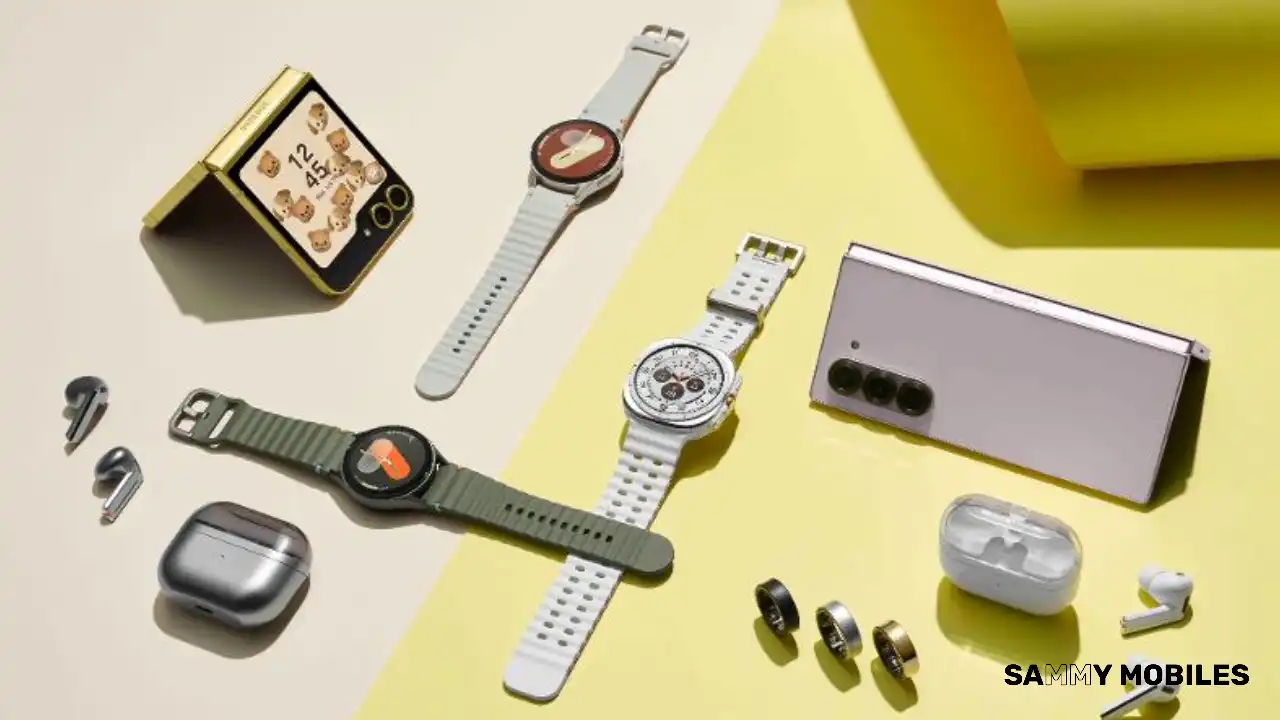
Samsung officially released the One UI 7 beta update for Galaxy devices in December 2024, starting with the Galaxy S24 series. Today, the company is expanding the beta program to the Galaxy Z Fold 6 and Flip 6. The One UI 7 beta update for the Galaxy Z Fold 6 and Galaxy Z Flip 6 brings a number of exciting new features and improvements; check out the full changelog below.
The One UI 7 beta based on Android 15 is available to participants in India, South Korea, the UK, and the US for the Galaxy Z Fold 6 and Flip 6. Similar to the Galaxy S24, the beta upgrade brings a new user interface to Samsung foldables, with users expecting more improvements during testing.
This update includes many much-awaited changes, including a vertical scrolling app drawer, redesigned icons, better widget customization options, larger home screen folders, and a new user interface.
Check out the full changelog of the Samsung One UI 7 beta update for Galaxy Z Fold 6 and Flip 6 below for all the details.
Write like a pro
Let Galaxy Al help you with writing tasks wherever you can select text. You can correct spelling and grammar, change tone, summarise, or apply formatting. You can even start with a short snippet and let the Al do the writing for you.
Transcribe recorded calls
It’s easier than ever to review the content of your recorded calls in the Samsung Phone
app. You can view the entire conversation as a text transcript on the Recents screen
Bold new look
Visual enhancements
Enjoy a more sophisticated and unique look. One Ul 7 introduces a stunning redesign to key components including buttons, menus, notifications and control bars, providing a more consistent visual experience with curves and circles. Beautiful new colors, soft animations, and an innovative blur effect that’s unique to One UI make information hierarchy clearer and help you focus on important information.
Reimagined icons and widgets
Fresh new app icons will look great on your home screen with new visual metaphors and color schemes that make it easier to recognize the app you need. Widgets have also been completely redesigned with more colorful images and more consistent layouts.
Enhanced Home screen
Simplified Home screen grid
Your Home screen now looks even better than before. A new standard grid layout keeps things symmetrical and makes it easier to use One Ul widgets in standard sizes.
Improved Home screen landscape view
Get a more consistent look for your Home screen, even when using your phone horizontally. Widgets now have a similar aspect ratio in landscape view, and text labels appear below icons instead of beside them.
Customize your app and widget style
Make your Home screen look just the way you like it. You can now adjust the size of app icons and choose whether or not to show text labels below app icons and featured widgets.
New widget settings
Get the right look for your widgets. You can adjust shape, background color, and transparency in the settings for each widget.
Larger Home screen folders
You can make folders on your Home screen larger so you can open apps immediately without the need to open the folder first.
Easier access to Finder
The Finder search bar has been moved to the bottom of the Apps screen so it’s easier to access it with one hand. You can also add a button Finder button to your quick panel so you can access it any time.
Lock screen and Always On Display
Stay on top of important tasks with the Now Bar
Check the information you need right now and start essential features without unlocking your phone. Ongoing tasks will appear in the Now bar at the bottom of your Lock screen so you can check key information quickly. Information includes media controls, Interpreter, Stopwatch, Timer, Voice Recorder, Samsung Health, and more.
Make your clock look just the way you like it
Discover a variety of new clock styles for your Lock screen. You can adjust the thickness of lines in the default clock style, or try one of the new animated clocks to match your tastes.
More flexible editing
It’s easier than ever to edit your Lock screen. You can resize your clock to any size you like and drag it to your desired position.
More widgets and shortcuts
You can now see more and do more even when your phone is locked. Add a widget to show pictures and stories from your Gallery, or try a shortcut that opens the QR code scanner with a quick swipe.
Quick panel and notifications
Separate notification and quick panels
Instantly access the panel you need with more space for quick settings. Swipe down from the top right corner of the screen to open the quick settings panel. Swipe down from anywhere else on the top of the screen to open the notification panel. To go back to the previous layout, you can choose to view notifications and quick settings together in quick panel settings.
Live notifications
Stay on top of what’s happening right now. Live notifications show you the progress of ongoing activities like timers, voice recordings, exercises, and more so you can take quick actions related to them. Live notifications will appear on the Now bar on the Lock screen, on the status bar, and at the top of the notification panel.
New notification layout
Icons on notifications are now the same as the icon that appears on your Home screen, making it easy to recognize which app sent each notification. Grouped notifications appear as a stack of cards. Tap a stack to show all notifications in the group.
Customize your quick panel
Create the quick panel layout that’s right for you. You can tap the pencil icon at the top of the quick panel to enter Edit mode, then move buttons and controls up and down to match your preferences.
Capture images with ease
New Camera layout
Camera buttons, controls, and modes have been reorganized to make it easier to find the features you need and to give you a clearer preview of the picture you’re taking or the video you’re recording.
Mode selection improvements
The More modes menu has been redesigned. Instead of filling the whole screen and blocking the camera view, you can now choose a mode from a small pop-up that only covers the bottom of the screen.
Enhanced zoom controls
It’s now easier to choose the right zoom level. A 2x lossless zoom button is now available by default, and additional zoom options appear after you select a lens.
Save exposure settings for each mode
Control how bright or dark your images are with the Exposure option in the camera quick controls. After you set the exposure for a mode, it will stay set in that mode even if you switch to a new mode and come back.
Improved Pro/Pro video modes
Pro and Pro video modes have a simplified layout that makes it easier to focus on the picture you’re taking or the video you’re recording. A new zoom control is available whenever you’re recording in pro video mode that lets you control the zoom speed for smooth transitions. Mic controls in Pro video mode have been moved to quick controls.
Line up the perfect shot
Get help adjusting the camera’s position with grid lines and levels. Grid lines can now be turned on and off separately from the horizontal level. There’s also a new option to show a vertical level.
Enjoy your special moments
Free-form collages
Go beyond the preset layouts for collages in Gallery. You can now adjust the size, position, and rotation of images in your collage to create your own unique layout.
Edit collages in stories
Make your story’s collage look just the way you like it. You now have full control to edit collages created in stories. Replace images, remove or add images, or adjust the position and size.
Motion photo effects
Apply fun playback effects to your motion photos such as slow motion or boomerang. After applying an effect, you can instantly share the result as a video.
Powerful video editing
Easily undo your edits
Don’t worry about making mistakes. Undo and Redo options are now available when editing videos for actions such as transformations, filters, and tone changes.
Animate your videos
Add fun animation effects to stickers and text in your videos in Studio. Choose from fade in, fade out, wipes, rotation, and more.
Manage your health
Stay mindful
The new Mindfulness feature in Samsung Health can help you manage stress and anxiety in your daily life. Keep track of your moods and emotions, practice breathing exercises and meditation, and more.
New Samsung Health badges
Stay motivated and work toward your health goals while earning new badges in Samsung Health. Challenge yourself to earn the new badges for energy score, exercise, activity, food, water, body composition, and more.
Never forget your medications
You can now set up medication reminders in Samsung Health so you always know when it’s time to take your medicine. You can also check precautions and interactions for the medication you take.
Check your health records
Securely access your health records from hospitals, clinics, and other healthcare providers all in one place in Samsung Health.
Boost your productivity
Previews for minimized apps
When multiple pop-up windows from the same app are minimized, they’ll be combined into a single icon. Tapping the icon will show a preview of all open windows from the app, allowing you to easily select the window you want.
Group your alarms
Create groups of alarms that you want to control together in the Clock app. You can turn off all the alarms in one group with a single tap.
Keep all your alarms at the same volume
For simpler setup, all of your alarms will use the same volume by default. If you prefer to set different volumes for each alarm, you can choose this in Clock Settings.
Enhanced file selection
The new File Picker makes it easier to attach and select files in a variety of apps. It’s easy to switch between different storage locations and categories, and previews are shown to make sure you get the right files.
View more on large screens
My Files lets you see even more than before on large screen devices. On the right side of the screen, you can see a preview of supported files along with the file path, size, and modified date.
Advanced options for routines
Program your phone to do almost anything you want. Routines are more powerful than ever before with If-Else logic and the ability to get data as variables.
Plan tasks and events
Easily reschedule calendar events
Just drag and drop an event from one date to another on your calendar in Month view to change the event date.
Show separate calendars on widgets
You now have more control over which calendars appear on your calendar widgets. You can choose just one calendar and show only events from it on your Home screen, or create 2 separate calendar widgets with a different calendar on each one.
Count down the days to an important event
It’s easier than ever to create a countdown widget for an event on your calendar. Go to the event details, then select Add countdown widget from the more options menu. A widget will appear on your home screen showing the number of days until your birthday, anniversary, vacation, or any other event that you choose.
Move all events from one calendar to another
Avoid the hassle of moving events one at a time. You can now move all events from one calendar to another, such as moving all events from the calendar on your phone to a cloud-based calendar.
More options for repeating reminders
When you create a repeating reminder, you can now choose multiple dates for repeating instead of just one.
Enhanced quick add menu
It’s now easier to create reminders quickly. The quick add menu now provides preset options for time and location conditions.
Automatically delete completed reminders
Clear out the clutter from your reminder list. A new optional setting lets you automatically delete completed reminders after a certain period of time.
Reuse completed reminders
You can now duplicate completed reminders so you can reuse them without entering all of the information again.
Connect and share
Recommended devices for Quick Share
Don’t waste time searching for the right device to share with. Devices signed in to your Samsung account and devices you’ve shared with in the past will appear at the top of the list so they’re easy to find.
Continue sharing over the internet
No need to worry about failed file transfers. When sharing files using Quick Share, if the devices become too far apart to continue a direct transfer, the transfer will continue seamlessly over the internet using Wi-Fi or mobile data.
Protect your security
Check the security status of your devices
Find out about security risks and solve them quickly. Knox Matrix monitors supported devices signed in to your Samsung account using a secure private blockchain. Each device can check the security status of other devices and let you know if there are any threats.
Stay safe from security threats
Auto Blocker does even more to protect you from cyber attacks when Maximum restrictions is turned on. 2G networks are now blocked, and your phone won’t automatically reconnect to Wi-Fi networks. These restrictions can help prevent an attacker from intercepting your network traffic.
Battery and charging
More options for power saving
You now have more control over what happens when your phone is in Power saving mode. Choose exactly the features you want to limit to save the amount of battery that’s right for you. You can even change these options while Power saving is on.
More control over battery protection
When you turn on battery protection ,you can now adjust the maximum charging level anywhere between 80% and 95%.
New charging effect
When you plug in a charger, the charging confirmation is smaller and appears at the bottom of the screen instead of the middle to prevent interruptions while still making it easy to check the charging status.
Accessible to everyone
Zoom in and out with just one finger
Zooming in and out just got easier. For people who have difficulty using pinch zoom, you can now activate 1-finger zoom from the Assistant menu, Swipe up or right to zoom in. Swipe down or left to zoom out.
Enhanced screen controls
The Assistant menu now does even more to help you control the screen. You can now double tap and touch and hold just by tapping a single button. New scroling controls let you move around the screen a specific distance by tapping the start and end points on the screen.
Customize your touch interactions
Get help choosing the settings that are most comfortable for you. New tests are available for the Touch and hold delay, Tap duration, and Ignore repeated touches settings. The test can tell you if your current settings are appropriate or need adjustments.
Even more improvements
Watch videos again
In Video Player, a button will appear at the end of each video that lets you start the video over again from the beginning.
Improved contacts list
For a more consistent experience, the same contact list now appears in both the Phone app and Contacts app. Menus and options are the same in both locations so you can always find what you’re looking for. When searching for contacts, contacts you’ve searched for frequently appear at the top of the search results, helping you find the right person quickly.
Quickly add boarding passes to Samsung Wallet
When you view a supported airline or travel webpage that includes a boarding pass in Samsung Internet, a button will appear so you can add it to Samsung Wallet quickly and easily.
Activity forecasts
It’s now easy to check if the weather is suitable for outdoor activities such as running, gardening, camping, and more. You can choose up to 3 activities to show in the Weather app.
Custom place labels
It’s easier to keep track of different locations in the Weather app. You can now set custom labels to the locations you add, such as Home, Office, School, or any other place where you want to check the weather.
Boost your gaming
Game Booster’s in-game panel has been redesigned, making it easier to change settings quickly without leaving the action.
Set performance for each game
Game Booster now lets you adjust performance settings separately for each game. You can set some games to high performance and others to save battery for longer gameplay time. Find the settings that work best for you.

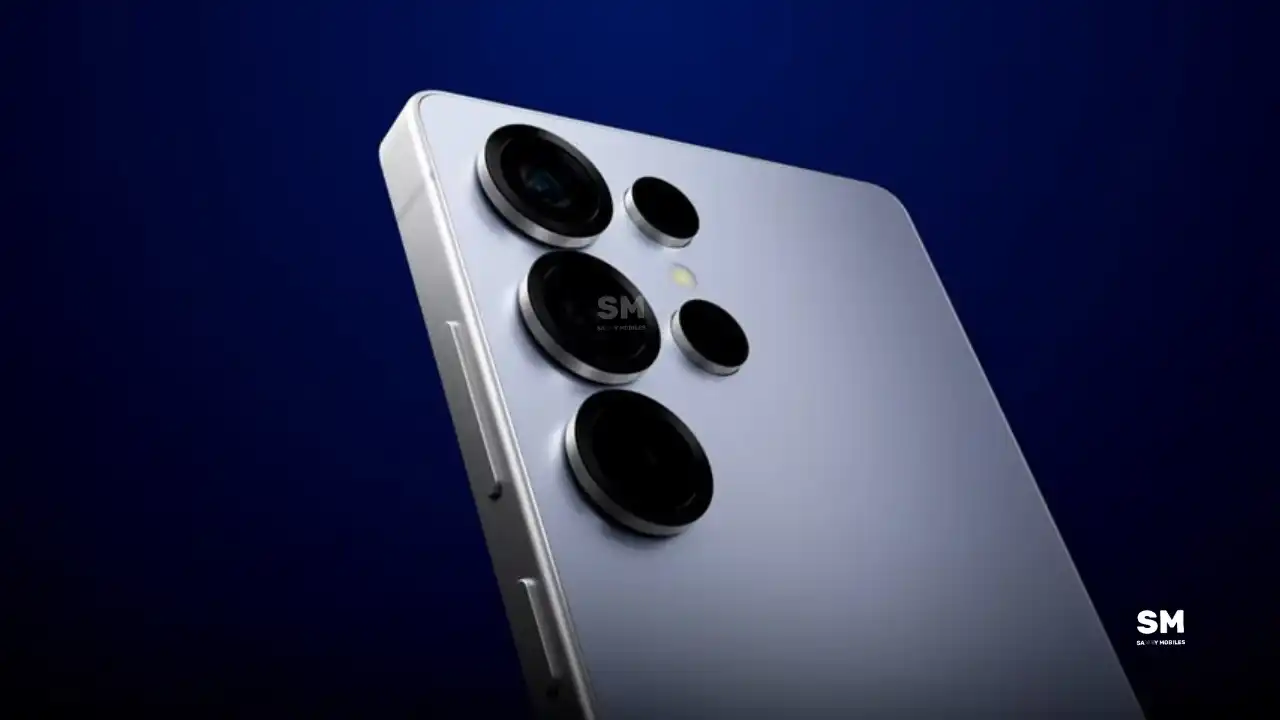
Samsung is reportedly planning major upgrades for its future Galaxy S27 series. Even though these flagship phones are still far from launch, new leaks have revealed that Samsung is working on the Galaxy S27 Pro alongside the Galaxy S27, Galaxy S27 Plus, and Galaxy S27 Ultra models.
Galaxy S27 Pro leaks
As per the GSMA database Documents, Samsung has three unannounced devices in the pipeline. The database has three model numbers: SM-S956U, SM-S957B/DS, and SM-S958U. According to this, the SM-S956U model number identifies it as the Galaxy S27+, while those for the SM-S957B/DS identify it as the Galaxy S27 Pro, and the SM-S958U lists it as the Galaxy S27 Ultra.
Additionally, the Pro variant phone is expected to resemble the Galaxy S27 Ultra in terms of specifications closely.
In terms of specifications, the Galaxy S27 Pro is expected to feature a more compact design, sporting a 6.5-inch Dynamic AMOLED 2x display. There is also talk that it will not include an S Pen.
As for the cameras, this phone could feature a 200MP primary rear camera, a 50MP ultra-wide camera with autofocus, and a 50MP telephoto camera with 3.5x optical zoom. Additionally, it includes a 12MP front camera for better selfies.
The Galaxy S27 Pro is expected to feature the Snapdragon 8 Elite Gen 6 Pro for Galaxy processor. Additionally, it may come with 12GB or more of RAM and 256GB or more of UFS 5.0 storage. The phone could house a 5,000mAh battery with 45W or faster charging.
Based on previous launch timelines, the Galaxy S27 series is expected to launch in the first quarter of 2027. Stay tuned for more facts.
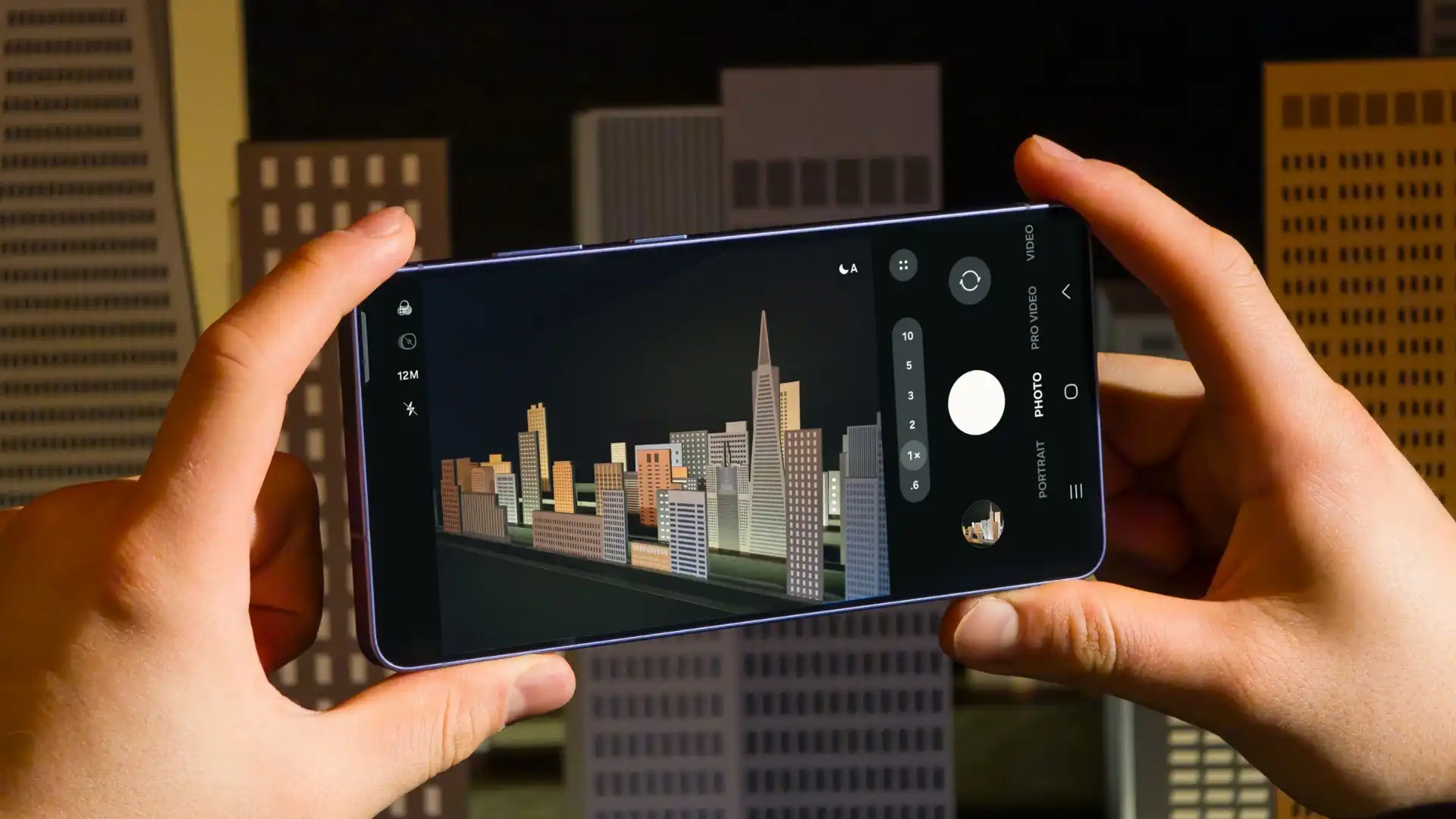
Samsung has reportedly commenced Android 17-based One UI 9 testing for the Galaxy S26 series. The first-ever Android 17 build has surfaced on Samsung’s firmware server, suggesting an early debut of the next One UI version.
An alleged Android 17 firmware has been listed on CheckFirm (via TarunVats) for the Galaxy S26 Ultra. That said, Samsung kicked off its work on the One UI 9 system for the latest flagship nearly two months earlier than usual.
Based on available information, Samsung is currently testing the BZC5 build on the Galaxy S26 Ultra. Samsung will take its time to refine this new operating system for Galaxy devices and will not rush the release of the firmware.
Although testing for One UI 9 has commenced early, this does not imply that it will become available to customers any sooner. Samsung will take the necessary time to optimize this new operating system for Galaxy devices and will not rush the firmware release.
On February 25, Samsung launched the Galaxy S26 series, and these phones will be available starting March 11. A day later, the company began rolling out Beta 6 for the Galaxy S25 series, but it seems this may not be the last beta before the stable version is released. Meanwhile, the Galaxy S25 series is still receiving updates through the One UI 8.5 beta program.
Samsung One UI 8.5 beta 7
A reliable tipster, @TarunVats, spotted a new One UI 8.5 beta build for the Galaxy S25 series on testing systems. The build ending in ZZC3 indicates that Samsung is preparing the seventh beta update for the S25 phones. It’s worth noting that this build began rolling out in March, but the patch level is still February 2026.
The new build suggests that the beta program is still active even after the Galaxy S26 series launched with One UI 8.5 features and improvements. Galaxy S25 Users may have to wait a little longer for the final stable update.
The latest One UI 8.5 Beta 6 update fixed many problems and improved the phone’s performance, including Bixby, Gallery, Now Bar, Now Brief, Display settings, Modes, and Routines.
At this time, Samsung hasn’t officially confirmed how many more beta updates will arrive or when the stable One UI 8.5 version will be released for the Galaxy S25 series and older phones. However, the new beta build is a strong indication that at least one more beta update is on the way. Galaxy S25 users who are part of the beta program should keep an eye out for new updates.
-

 NEWS2 years ago
About the Battery Health and performance of Galaxy S25
-
 NEWS2 years ago
Samsung Android 15 update: Which Galaxy devices will get One UI 7
-
 NEWS1 year ago
Join the One UI 8 Beta Program: Experience the latest One UI with Android 16
-
 NEWS2 years ago
More evidence suggests the Galaxy S25 Ultra may eventually adopt this Pixel security feature
-
 ANDROID1 year ago
Samsung Galaxy phones and tablets that should receive Android 16 and One UI 8 update
-

 NEWS2 years ago
Samsung Galaxy S25 Ultra battery and Charging test: Upgrade results
-
 NEWS2 years ago
Galaxy S25 to integrate Bixby and AI into camera app
-
 NEWS2 years ago
One UI 7 battery icon to show charge levels with dynamic colors