
NEWS
How to customize your Samsung One UI 7 app icons


App icons are the gateway to enter an application and this app makes the user experience interactive. Samsung Galaxy phones come with many new features to customize the One UI 7 software system including system app icons. Today, we will explore the latest option to make your phone look a little better.
Samsung Galaxy devices running One UI 7 improve the user experience and allow you different ways to figure out how to customize the user interface with home screen settings, offering features such as adjustable app icons, optimized grid layouts, enlarged app folders, and the ability to adjust labels for apps and widgets.
Today, we’ll show you the way to customize your Samsung Galaxy phone’s system icons running One UI 7 software update. As of the time of writing, the One UI 7 update is only available on the Galaxy S25 and Galaxy S24 series running beta versions.
How to customize your Samsung One UI 7 app icons
- All you have to do is open the Settings menu and then tap on the Home screen.
- Here you will see the App size menu.
- The size of the app icons can be changed by dragging the slider left or right.

You can see the difference below between small-size app icons, medium-size app icons, and large-size app icons.

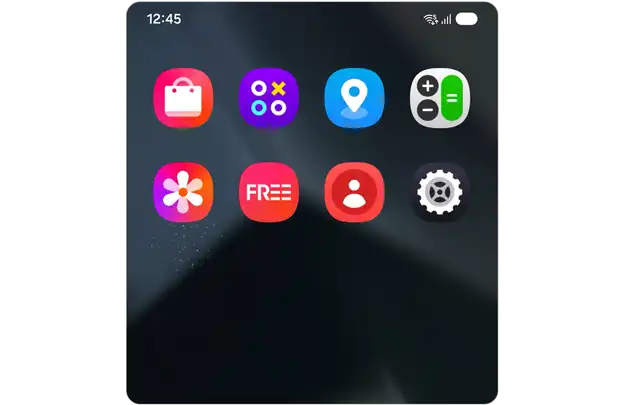
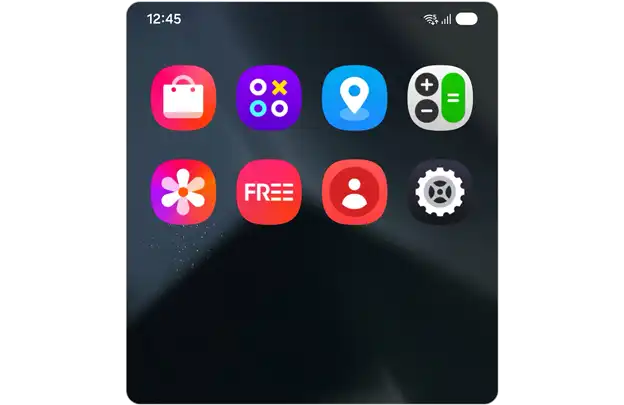
In addition to this, The home screen grids offered on the Galaxy device running One UI 7 have been refined to make it easier to create optimized layouts and enhance the overall aesthetics of the Home screen.
Large Folders feature
On the other hand, this update has introduced the Large Folders feature which lies in its functionality that gives you direct access to the apps instantly while inside the folder without opening the folder first. Also, this feature allows you to properly manage your phone’s home screen apps and properly place them.






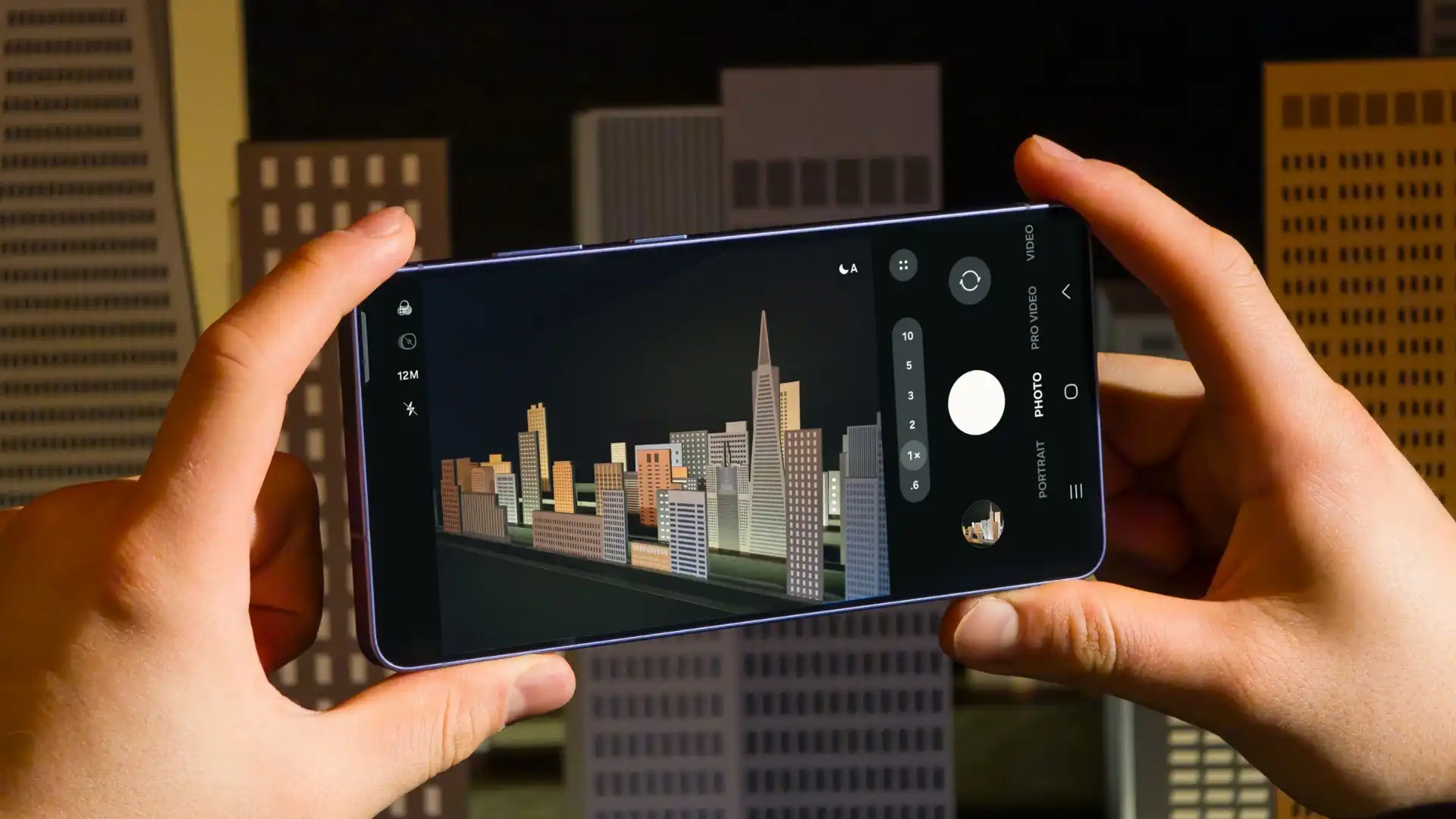
At the Galaxy Unpacked 2026 event on February 25, 2026, Samsung unveiled its new Galaxy S26 series. The series includes the Galaxy S26 Ultra, Galaxy S26+, and Galaxy S26. These new smartphones come with smarter AI features that help simplify everyday tasks. Now, we are talking about four hidden Galaxy S26 Ultra camera improvements, helping improve image and video quality.
Notably, the Galaxy S26 Ultra features Samsung’s most advanced camera system to date. Samsung has integrated its 200MP primary camera and 50MP telephoto camera into the Galaxy S26 Ultra, with a wide aperture to allow more light to reach the sensor.
Additionally, the Samsung Galaxy S26 Ultra features the powerful Snapdragon 8 Elite Gen 5 for Galaxy processor, allowing Samsung to improve camera performance, even though the phone uses the same sensor as the previous Galaxy S series Ultra.
Samsung Galaxy S26 Ultra gets four camera improvements
1. Improved 200MP images
The Galaxy S26 Ultra feature a mutltiframe HDR processing, so that it may now capture the better 200MP images. The company says these 200MP photos deliver clearer, more detailed, and greater dynamic range than 200MP shots taken on earlier Galaxy S series models.
2. New 24MP mode in the stock camera app
The Samsung Galaxy S26 Ultra has a new 24MP resolution option in the stock camera app. This new mode combines a 12MP multi-frame processed image with a 50MP high-resolution image using a system called AI Fusion. The resulting 24MP photo offers more detail than a 12MP image to reach the sensors, resulting in brighter, cleaner, and sharper images.
3. Virtual Aperture in Portrait Mode
The Galaxy S25 Ultra launched with a virtual aperture feature, but it was limited to the Expert RAW app. Now, Samsung adds a virtual aperture feature to the Portrait mode of the stock camera app on the Galaxy S26 Ultra, allowing users to digitally adjust the aperture.
4. Auto option for Motion Photo
As the name suggests, a motion photo is a short video clip captured alongside a still image. It includes a few seconds before and after the shutter button is pressed.. Now, on the Galaxy S26 Ultra, when the Auto option is on, Motion Photos are only recorded when significant movement is detected in the scene. If you capture a static scene, such as a…. landscape, with no visible motion, the Motion Photo will not be saved.

Samsung has released the February 2026 security update for four more Galaxy devices – the Galaxy Z Flip 7, Galaxy Z Flip 7 FE, Galaxy Z Fold 6, and Galaxy Z Flip 6. This update keeps your phone secure and running smoothly instead of adding new features or changing its look.
As always, this update improves the phone’s security and makes the system run more smoothly. This update fixes issues with the previous software version and helps make the device more stable. Samsung says this update is important because it protects users from security risks and keeps personal data safe.
Galaxy Z Flip 7 February 2026 update
Users of these devices can verify the latest update via the One UI build versions given below.
- Galaxy Z Flip 7: F766NKSS8AZB2
- Galaxy Z Flip 7 FE: F761NKSS8AZB2
- Galaxy Z Fold 6: F956NKSS3CZB2
- Galaxy Z Flip 6: F741NKSS3CZB2
.
Samsung usually rolls out updates gradually, so users in other markets should also receive the same update in a week or two.
To manually download the update, go to Settings >> Software Update >> Download and Install. Once the download is complete, tap Restart/Install Now to complete the installation. Make sure your phone is connected to a stable Wi-Fi network and has enough battery.
In addition to the security update, Samsung is also working on One UI 8.5. The beta version is currently available for the Galaxy S25 series in some regions, and Samsung has confirmed that the stable version will launch with the Galaxy S26 series tomorrow. Stay tuned for more details.

The Samsung Galaxy S25 series has started receiving the One UI 8.5 beta 5 update. The latest beta software contains several bug fixes and provides stability. This is likely the last beta before a stable release.
One UI 8.5 Beta 5 ZZAN is rolling out to Galaxy S25, S25+, and S25 Ultra in key markets. So far, it has been rolled out in Germany, India, South Korea, the US, and the UK.
Additionally, the February 2026 security patch has been tagged with the latest Beta update. It provides fixes for 25 that come from Google for Android, and 12 are provided by Samsung Mobile for additional protection of the One UI operating system.
The One UI 8.5 Beta 5 software includes an updated Bixby version that improves the usability experience. Moreover, this beta version updated your Samsung apps to the latest available versions.
One UI 8.5 Beta 5 update changelog:
- Version – One UI 8.5, ZZAN
Major changes/improvement
- Bixby version update applied
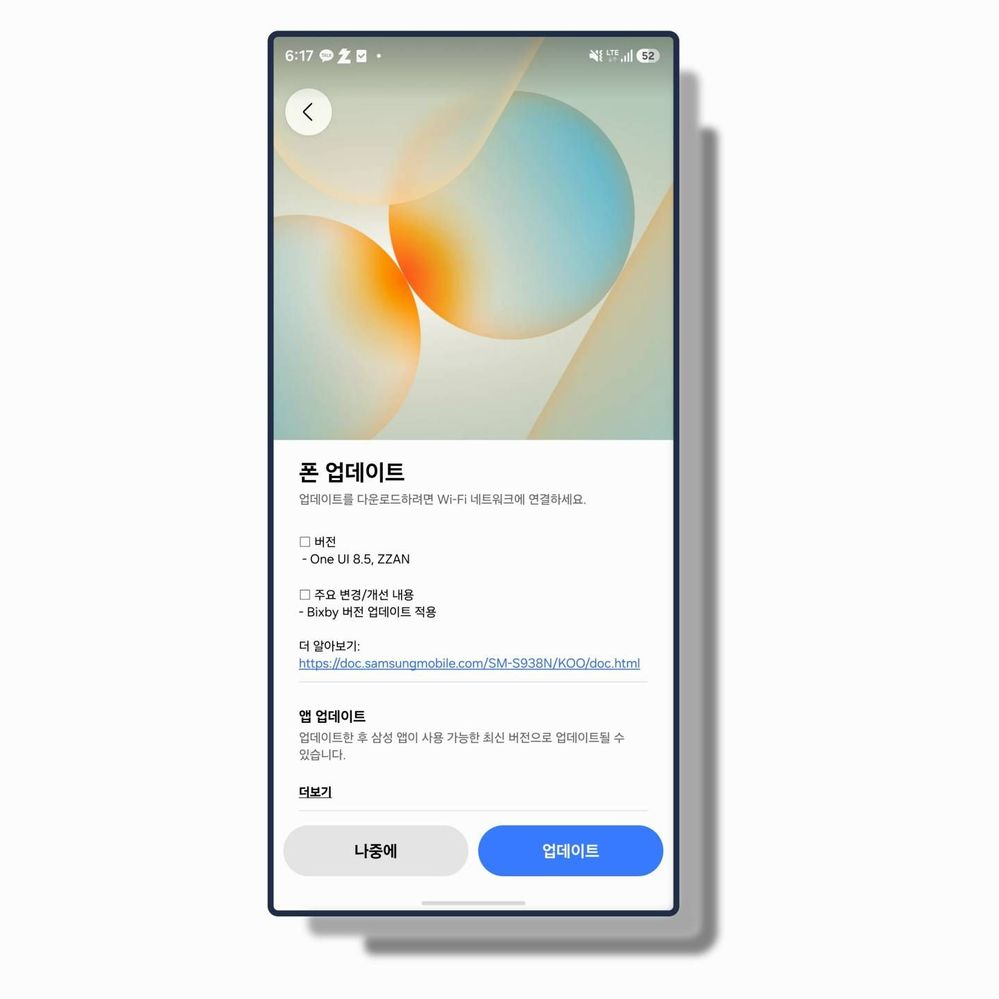
Samsung also revealed that the One UI 8.5 official rollout for the Galaxy S26 series will begin next week. That said, users of these flagships can expect the Stable update next month, and no new Beta will be provided in between.
If you’re already part of the One UI 8.5 beta program, you can get beta 5 on your Galaxy by going to Settings > Software updates > Download and install.
-

 NEWS1 year ago
About the Battery Health and performance of Galaxy S25
-
 NEWS1 year ago
Samsung Android 15 update: Which Galaxy devices will get One UI 7
-
 NEWS9 months ago
Join the One UI 8 Beta Program: Experience the latest One UI with Android 16
-
 NEWS1 year ago
More evidence suggests the Galaxy S25 Ultra may eventually adopt this Pixel security feature
-

 NEWS1 year ago
Samsung Galaxy S25 Ultra battery and Charging test: Upgrade results
-
 ANDROID11 months ago
Samsung Galaxy phones and tablets that should receive Android 16 and One UI 8 update
-
 NEWS1 year ago
Galaxy S25 to integrate Bixby and AI into camera app
-
 NEWS1 year ago
One UI 7 battery icon to show charge levels with dynamic colors