
NEWS
Samsung Galaxy S25 Ultra battery and Charging test: Upgrade results

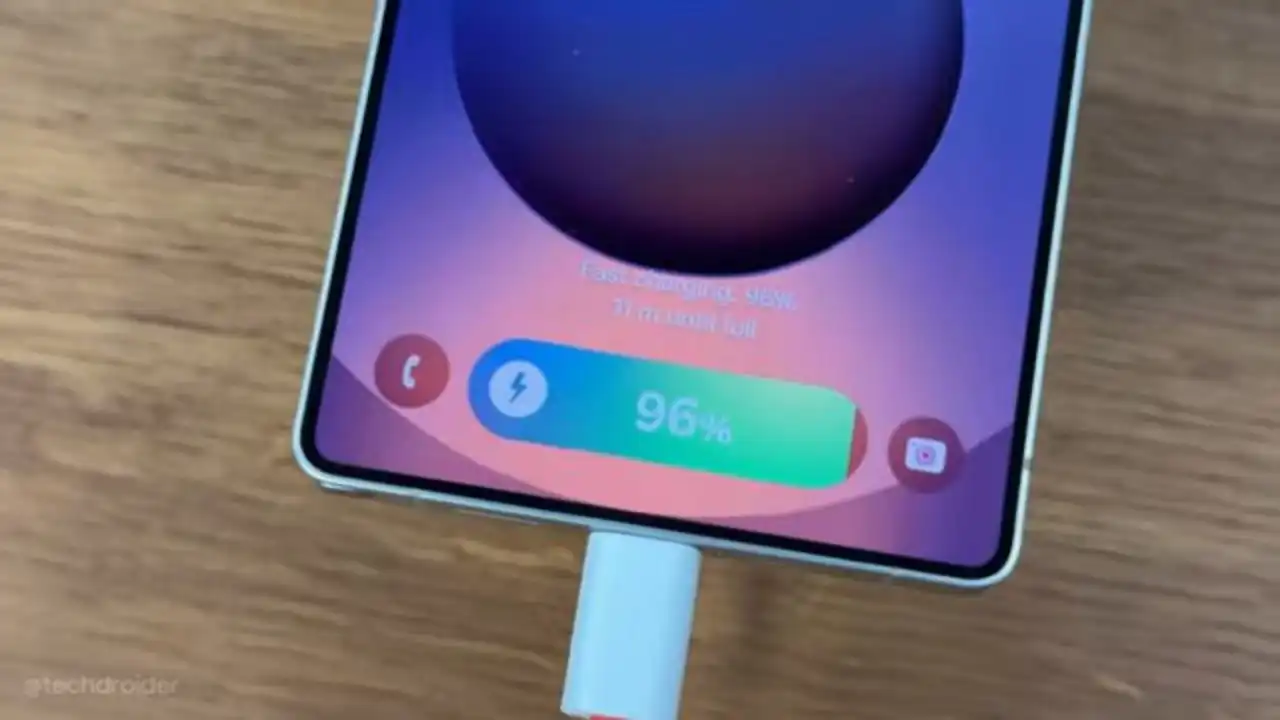
The Galaxy S25 series is now official. Even, the Samsung Galaxy S25 Ultra is designed with convenience in mind and super fast charging is an important part of delivering that experience. Despite the Galaxy S25 Ultra and S24 Ultra having similar battery and charging specifications on paper, the latest flagship offers decent upgrades over its predecessor in real-life usage, as per the TechDroider’s battery and charging test.
Galaxy S25 Ultra battery and Charging Test: Speed and heat results
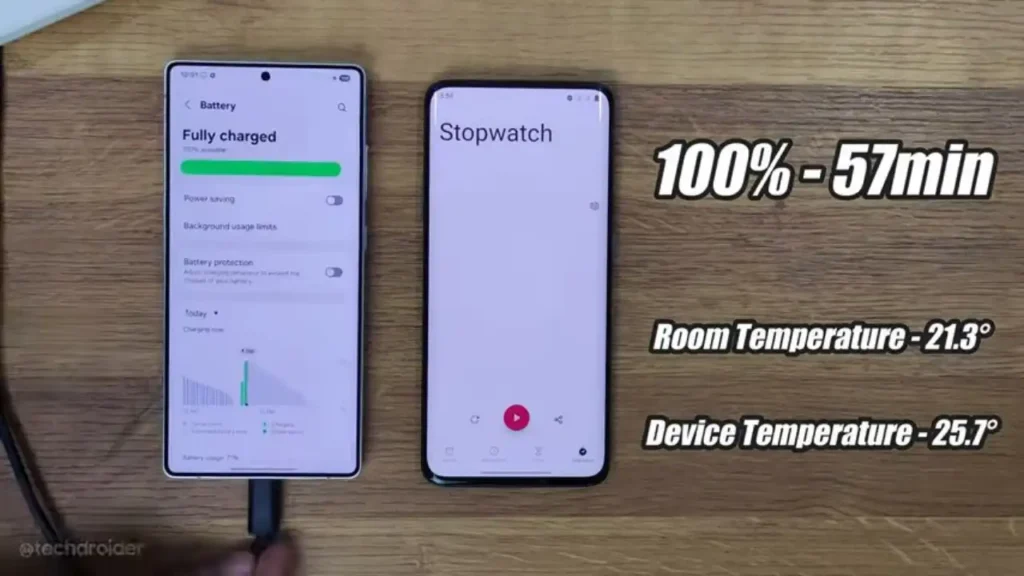
According to the charging test, the Galaxy S25 Ultra fully charges (from 0% to 100%) in about 57 minutes with a 45W adapter. This is a significant difference compared to the Galaxy S24 Ultra, which usually takes 1 hour and 11 minutes, meaning the S25 Ultra takes 15 minutes less time to charge.
Details of events from the video The Galaxy S25 Ultra’s 5000mAh battery took 10 minutes to reach 17%, 20 minutes to reach 40%, 30 minutes to reach 60%, 40 minutes to reach 80%, and 50 minutes to reach 96%. Here, the charging speed momentum fluctuated a bit, see here:
- 17% – 10 minutes
- 40% – 20 minutes
- 60% – 30 minutes
- 80% – 40 minutes
- 96% – 50 minutes
- 100% – 57 minutes: Tested by TechDroider
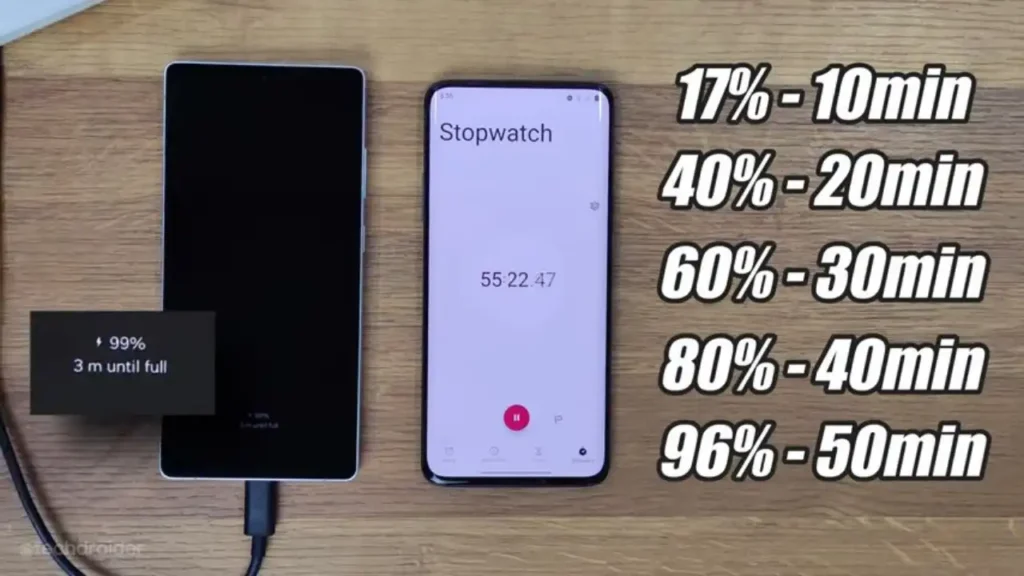
According to Samsung, the Galaxy S25 Ultra’s 5000mAh battery took 30 minutes to reach 65%, while as per testing done by TechDroider, the phone’s battery took 30 minutes to reach 60%.
This test ensures that you are able to make the most of the S25 Ultra’s fast charging capability, read on and find out the requirements for super fast charging.
The temperature of the Galaxy S25 Ultra after 57 minutes of charging using the 45W adapter was 25.7 degrees, which was slightly higher than the room temperature of 21.3 degrees, which makes sense because the device was charging.
Don’t forget to turn on fast charging on your Galaxy S25 Ultra. Here’s how:
How to turn on Super fast charging
The Galaxy S25 Ultra device has a built-in fast and super fast charging feature. To activate this feature, follow the steps below:
- Go to Settings
- Scroll down and tap on Battery and Device Care
- Tap Battery
- Click Charging settings
- Turn on Fast charging toggle
Nothing’s PD charger is supported, while OnePlus charger and cable are unsupported
As per the YouTuber who tried in the video, Nothing’s PD charger and cable support Samsung’s fast charging mechanism. Whereas, OnePlus’ charger and cable, do not activate fast charging on the Galaxy S25 Ultra.






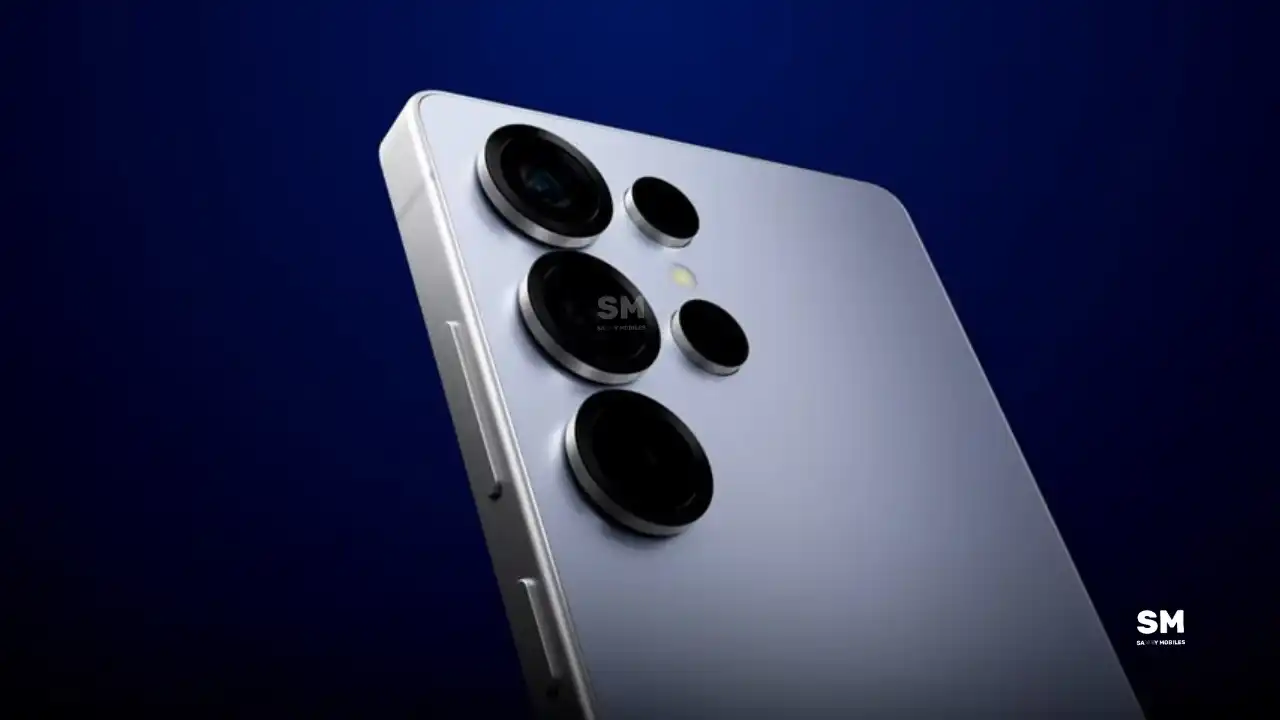
Samsung is reportedly planning major upgrades for its future Galaxy S27 series. Even though these flagship phones are still far from launch, new leaks have revealed that Samsung is working on the Galaxy S27 Pro alongside the Galaxy S27, Galaxy S27 Plus, and Galaxy S27 Ultra models.
Galaxy S27 Pro leaks
As per the GSMA database Documents, Samsung has three unannounced devices in the pipeline. The database has three model numbers: SM-S956U, SM-S957B/DS, and SM-S958U. According to this, the SM-S956U model number identifies it as the Galaxy S27+, while those for the SM-S957B/DS identify it as the Galaxy S27 Pro, and the SM-S958U lists it as the Galaxy S27 Ultra.
Additionally, the Pro variant phone is expected to resemble the Galaxy S27 Ultra in terms of specifications closely.
In terms of specifications, the Galaxy S27 Pro is expected to feature a more compact design, sporting a 6.5-inch Dynamic AMOLED 2x display. There is also talk that it will not include an S Pen.
As for the cameras, this phone could feature a 200MP primary rear camera, a 50MP ultra-wide camera with autofocus, and a 50MP telephoto camera with 3.5x optical zoom. Additionally, it includes a 12MP front camera for better selfies.
The Galaxy S27 Pro is expected to feature the Snapdragon 8 Elite Gen 6 Pro for Galaxy processor. Additionally, it may come with 12GB or more of RAM and 256GB or more of UFS 5.0 storage. The phone could house a 5,000mAh battery with 45W or faster charging.
Based on previous launch timelines, the Galaxy S27 series is expected to launch in the first quarter of 2027. Stay tuned for more facts.
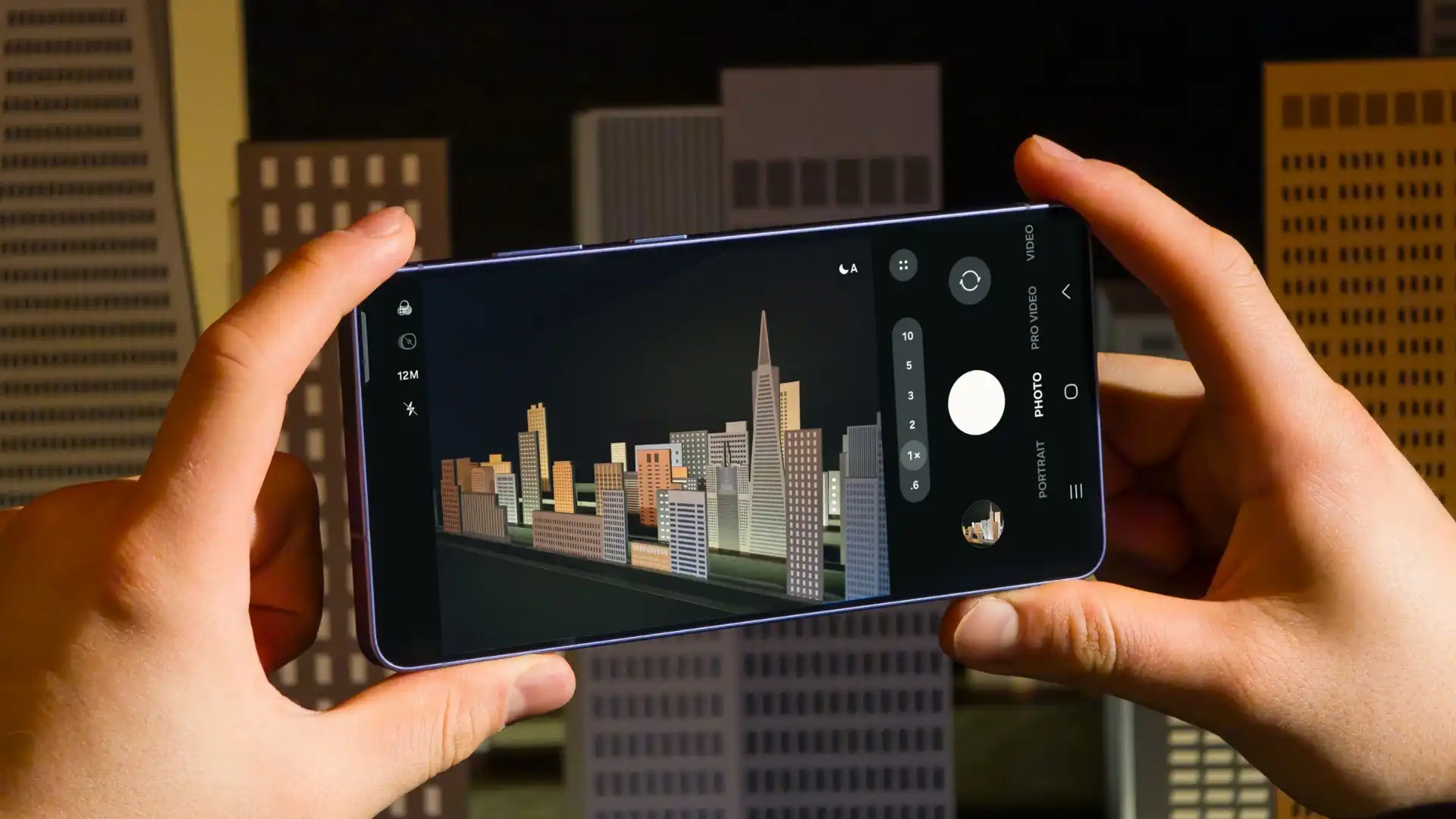
Samsung has reportedly commenced Android 17-based One UI 9 testing for the Galaxy S26 series. The first-ever Android 17 build has surfaced on Samsung’s firmware server, suggesting an early debut of the next One UI version.
An alleged Android 17 firmware has been listed on CheckFirm (via TarunVats) for the Galaxy S26 Ultra. That said, Samsung kicked off its work on the One UI 9 system for the latest flagship nearly two months earlier than usual.
Based on available information, Samsung is currently testing the BZC5 build on the Galaxy S26 Ultra. Samsung will take its time to refine this new operating system for Galaxy devices and will not rush the release of the firmware.
Although testing for One UI 9 has commenced early, this does not imply that it will become available to customers any sooner. Samsung will take the necessary time to optimize this new operating system for Galaxy devices and will not rush the firmware release.

On February 25, Samsung launched the Galaxy S26 series, and these phones will be available starting March 11. A day later, the company began rolling out Beta 6 for the Galaxy S25 series, but it seems this may not be the last beta before the stable version is released. Meanwhile, the Galaxy S25 series is still receiving updates through the One UI 8.5 beta program.
Samsung One UI 8.5 beta 7
A reliable tipster, @TarunVats, spotted a new One UI 8.5 beta build for the Galaxy S25 series on testing systems. The build ending in ZZC3 indicates that Samsung is preparing the seventh beta update for the S25 phones. It’s worth noting that this build began rolling out in March, but the patch level is still February 2026.
The new build suggests that the beta program is still active even after the Galaxy S26 series launched with One UI 8.5 features and improvements. Galaxy S25 Users may have to wait a little longer for the final stable update.
The latest One UI 8.5 Beta 6 update fixed many problems and improved the phone’s performance, including Bixby, Gallery, Now Bar, Now Brief, Display settings, Modes, and Routines.
At this time, Samsung hasn’t officially confirmed how many more beta updates will arrive or when the stable One UI 8.5 version will be released for the Galaxy S25 series and older phones. However, the new beta build is a strong indication that at least one more beta update is on the way. Galaxy S25 users who are part of the beta program should keep an eye out for new updates.
-

 NEWS2 years ago
About the Battery Health and performance of Galaxy S25
-
 NEWS2 years ago
Samsung Android 15 update: Which Galaxy devices will get One UI 7
-
 NEWS1 year ago
Join the One UI 8 Beta Program: Experience the latest One UI with Android 16
-
 NEWS2 years ago
More evidence suggests the Galaxy S25 Ultra may eventually adopt this Pixel security feature
-
 ANDROID1 year ago
Samsung Galaxy phones and tablets that should receive Android 16 and One UI 8 update
-
 NEWS2 years ago
Galaxy S25 to integrate Bixby and AI into camera app
-
 NEWS2 years ago
One UI 7 battery icon to show charge levels with dynamic colors
-
 NEWS2 years ago
Samsung Galaxy A36 5G receives FCC certification; global launch expected soon